WhatsApp Message Templates
If you write the same three messages every day, writing them once is the obvious fix. These are plain-text templates you can copy, edit and pre-fill into a chat link.
Why reusable messages help
Typing the same order confirmation forty times a week is not just slow, it is inconsistent: the fortieth one is shorter and blunter than the first. A saved template keeps the tone steady and leaves you editing only the details that change.
Business templates
- Order confirmed — "Hi {name}, your order {ref} is confirmed and will be ready on {date}. I'll message you here when it's ready for pickup."
- Ready for pickup — "Hi {name}, your order is ready. We're open until {time} today — just mention your name at the counter."
- Appointment reminder — "Reminder: your appointment is tomorrow at {time}. Reply here if you need to move it."
- Invoice sent — "Hi {name}, invoice {ref} is attached. Payment terms are {days} days — let me know if anything looks off."
- Out of stock — "Hi {name}, {item} is out of stock until {date}. Would you like me to hold one for you?"
- Opening hours — "Thanks for getting in touch. We're open {days and hours}. Send your question here and we'll reply during those hours."
Sales and follow-up
- First contact — "Hi {name}, this is {you} from {company}. You asked about {topic} — happy to send details here if that's easier than email."
- Quote sent — "Hi {name}, quote for {item} is {price}, valid until {date}. Any questions, just reply."
- Gentle follow-up — "Hi {name}, just checking whether you had a chance to look at the quote. No rush — tell me if the timing is wrong."
- Second follow-up — "Hi {name}, I'll stop chasing after this one. Should I keep the quote open or close it off?"
- Thank you — "Thanks for your order, {name}. If anything is not right, message me here directly."
Personal and support
- Intro after an exchange of numbers — "Hi {name}, it's {you} from {context}. Saving you the guesswork about who's messaging."
- Delivery instructions — "Hi, delivery for {address} — please leave it with {neighbour} if nobody answers."
- Rescheduling — "Something came up and I need to move {event}. Does {alternative} work for you?"
- Support reply — "Thanks for reporting this. Can you send a screenshot and your device model so I can reproduce it?"
Turning a template into a link
Any template can become a one-tap link: paste it into the link generator with the number, and the message arrives in the input field as an editable draft. The same text can go into a QR code for a counter or a flyer — see the link format reference for how the encoding works.
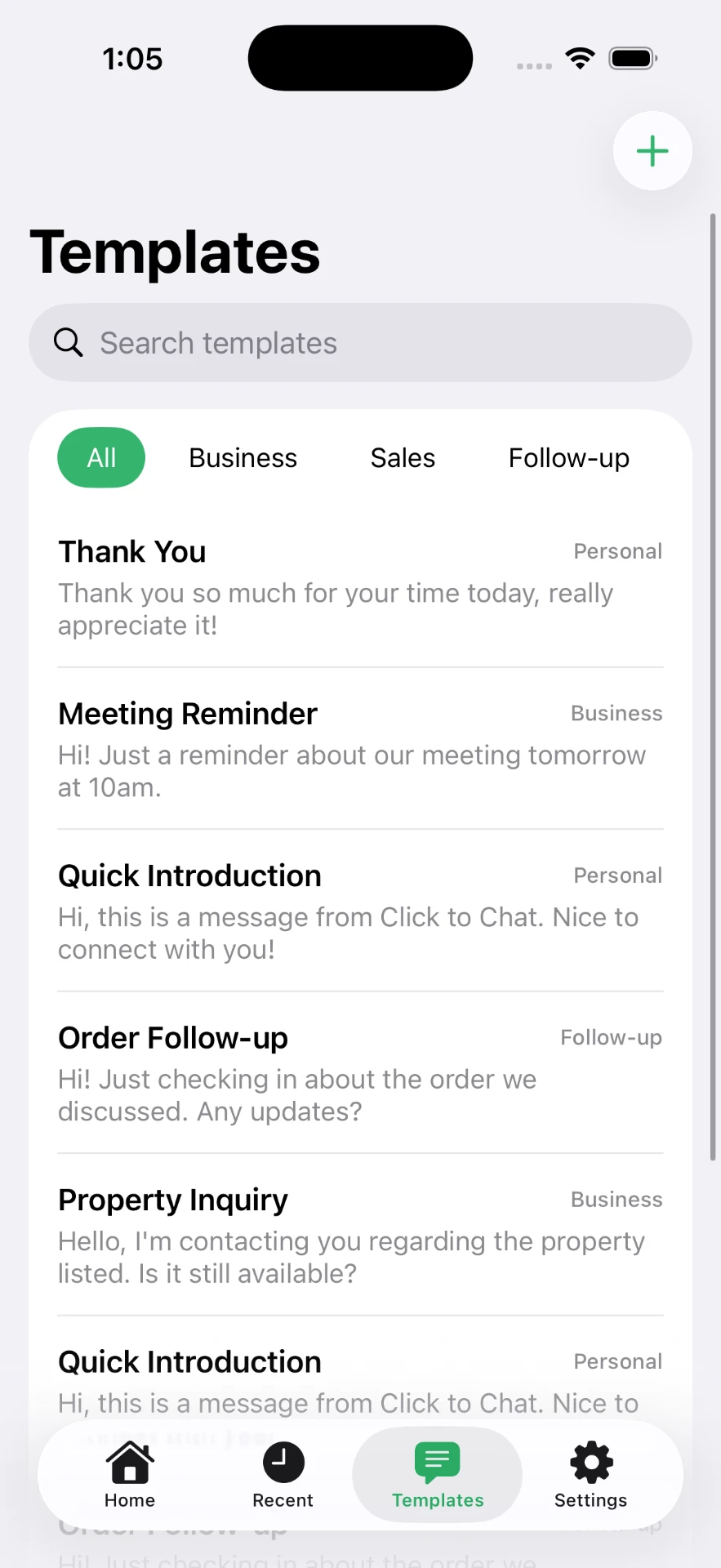
In the iPhone app, templates sit next to the keypad, so you pick the number and the message in one pass — without saving the number as a contact.
Frequently asked questions
Are these the same as WhatsApp Business API templates?
No. API templates are pre-approved by Meta for automated sending. These are personal text snippets you reuse yourself, with no approval process.
Can a template be pre-filled into a link?
Yes. Add the text to a wa.me link with ?text= and the recipient sees it as an editable draft.
Do templates send automatically?
Never. The message is placed in the input field; you still press send.
Where are templates stored in the app?
On your iPhone. Click to Chat keeps them on device, not on a server.
Click to Chat is an independent utility and is not affiliated with, sponsored by, or endorsed by WhatsApp LLC. WhatsApp is a trademark of its respective owner.